
You remember the photograph: your cat beside the blue watering can, watching a visitor through the kitchen window. What you cannot remember is who took it, which phone it came from, or whether the version in your messages is the best available copy.
Learning how to organize pet photos becomes easier when you focus on the searches you actually make. A useful collection should help you find a particular animal, recover a remembered moment, and locate the file you need for a project. Those are related jobs, but one long album does not always serve all three.
Here is a practical way to make a household collection easier to navigate, including pictures contributed by other people. You can try it with a small selection before reorganizing years of memories.
Give yourself three ways to find a picture
Think of three questions someone might ask: “Where are the pictures of Juniper?” “Which photos came from the cabin visit?” and “Where is the image we chose for the portrait?” Give each question an obvious route into your collection.
The first route follows the pet. The second follows an occasion or recognizable setting. The third follows a specific project. In a photo app, these routes might be separate photo albums. In a computer folder system, they might be a main collection plus a short document pointing to selected files. You do not need to make a fresh file copy for every route.
For example, a hypothetical household could keep a “Juniper” album, an “Autumn cabin visit” album, and a “Hallway portrait selection” note. A single picture can matter to all three. The note can identify its location without pretending to be another complete archive.
Avoid creating an elaborate category for every possible mood or pose. If you would never search for “slightly sleepy afternoon expressions,” it probably does not need its own album. Start with labels that match the words your household already uses.
Agree on names before combining family contributions
Organization becomes harder when three people call the same dog by three different names, or when every download is called “final.” Choose one everyday pet name for labels, then use an occasion or brief description when it helps distinguish a picture.
Ask each contributor a small, specific question: “Do you have the original of Juniper by the watering can?” This is easier to answer than a request for every pet photograph they have ever taken. Ask what they remember about the occasion, too. A useful detail might be the place or who was visiting; an exact date is unnecessary when nobody knows it.
Keep a simple source note for contributions. It can say “From Alex's phone; date uncertain; kitchen window” without adding private account details. That gives you a person to ask if the file later looks incomplete or a better version turns up.
Older paper pictures can join the same system as clearly identified scans. Our guide to scanning old pet photos covers that separate task. Label the digital result as a scan so a future viewer does not confuse the date you digitized it with the date the photograph was taken.
Keep the collection and its working selections understandable
A project album is useful because it narrows your choices. It does not need to replace the collection from which those choices came. Write down what your labels mean before making changes: “Portrait choices” contains candidates; “Selected” identifies the one you intend to use.
Check how your chosen app handles albums. In Google Photos, for example, removing a picture from an album or deleting the album does not remove that picture from the main library. Deleting it from the main Photos section is a different action. The official Google Photos album instructions explain that distinction. Do not assume another app uses the same behavior.
If your immediate problem is getting an iPhone to recognize and name a dog or cat, use our People & Pets guide. Recognition can help you discover pictures within that library. Your household organization still needs a way to account for files elsewhere and for photographs that another person supplies.
For a trial run, leave the main collection in place and create one working selection. Practice finding a picture through each of your three routes. If the labels confuse you now, simplify them before applying the system more widely.
Make file versions and photo captions travel together
Once a photo is chosen, the next difficulty is often identifying which version to send. A tightly cropped copy, an annotated reference, and the original can look almost identical as thumbnails. Give working versions descriptive names so you do not have to open each one to discover its purpose.
For an illustrative project, your handoff folder might contain:
- Juniper-window-original.jpg — the source file supplied for the project.
- Juniper-window-crop-preview.jpg — a working crop showing the proposed composition.
- Juniper-window-notes.txt — the explanation that accompanies the selection.
Use the file extensions your software actually produces; renaming an extension does not convert an image. The example above is a naming pattern, not an instruction to change formats or replace original files.
Keep photo captions brief and useful. “Juniper watching Alex arrive; kitchen window; probably spring” is more informative than “favorite.” A second sentence could explain which version is the source and which is a preview. Mark uncertain details instead of giving a guess the appearance of a confirmed date.
Before relying on an exported selection, open it outside the photo app. Can you identify the correct image and understand its note? Check the image dimensions and export settings, too. Treat captions, dates, and file quality as things to verify in the exported result; do not assume every application carries them across in the same way.
Build a project selection around the decision ahead
Different projects need different pictures. A family slideshow can include a distant view of a familiar walking route. A portrait reference may need a clearer view of your pet's face. Neither choice makes the other photograph less worth keeping.
For a portrait, review a small selection at full size and note what each picture contributes. One may capture the expression you love, while another shows a marking hidden by the first crop. Pawfolio's pet portrait photo tips can help with that source-image review.
Make the decision explicit in your project note: “First choice for expression; second image for the white patch below the chin.” That is clearer than sending several unnamed images and hoping someone understands the relationship. Keep your own selection notes distinct from any instructions or specifications a particular service requests.
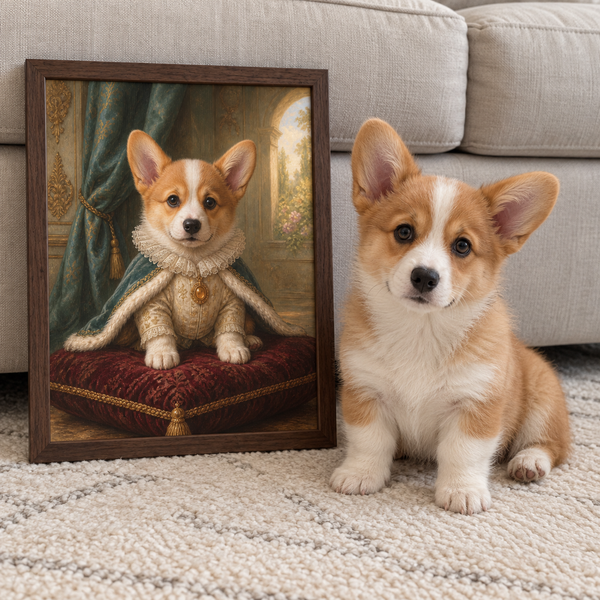
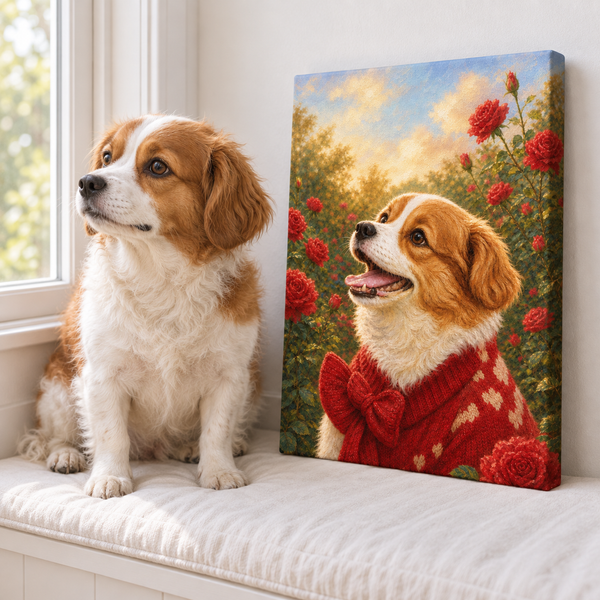
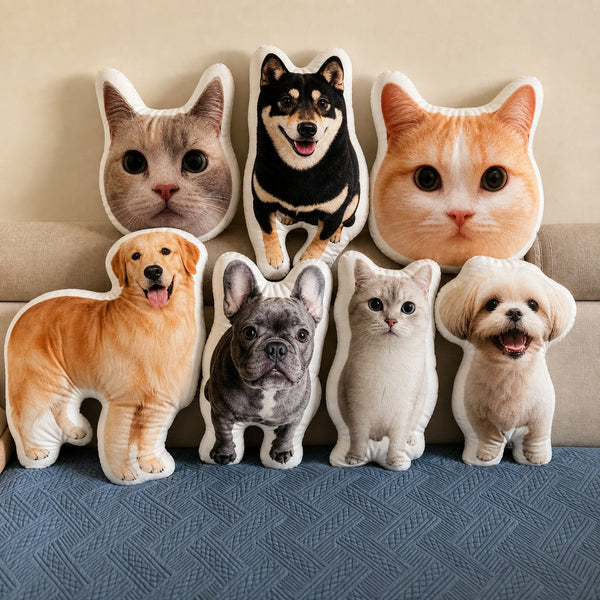
When you are ready to explore a physical keepsake, Pawfolio portraits made from your pet photos are one possible next step. You can also stop with a useful personal collection. Finishing the organization does not require buying a product or turning every favorite into wall art.
Test retrieval, then protect what you can now find
Close the library and try three small searches: find one pet, find one remembered occasion, and locate the source file for your current project. Ask another household member to try the project search using only your note. Their hesitation may reveal an unclear label you no longer notice.
Then check preservation separately. The Library of Congress guidance on digital photographs recommends keeping copies in different places and periodically checking that the files remain readable. An organized album is not, by itself, proof that you have a separate recoverable copy.
Write down where your important copies are kept and open a few files from those locations. Use the actual backup service or storage method's documentation to understand what it retains. Keep the instructions understandable enough that you could follow them after replacing a device.
As new pictures arrive, give the ones you will want again an obvious route back into view. The aim is a collection you can use: a remembered moment, a recognizable filename, and a photograph you can find without starting the whole search over.